The floks at NASA know how to rock out in Gangnam Style!
Showing posts with label Geek. Show all posts
Showing posts with label Geek. Show all posts
Saturday, December 15, 2012

Wednesday, March 7, 2012
Infinity Blade - Dungeons released
I have been a fan of the Infinity Blade games for the iPad and their use of unreal game engine. This one at Apple's keynote for their new release in April definitely raised the bar in bringing lots of cinematography and film techniques to the game with insane resolutions. Enjoy the well done trailer video:
Monday, May 10, 2010
How To: Set up dual band WiFi and juice up the downloads!
A lot has been talked about 60Hz Wi-Fi products coming into market in the latter half o f this year. These tri-band wi-fi devices will be capable of seamlessly flick your high def content like blu ray to multiple devices over your home or across the internet. 60 Ghz is reserved for high bandwidth applications and will probably will have certification protocols and such applications written to handle that kind of bandwidth. Traditional Wi-Fi networks are 2.4GHz and 5GHz bands so when 60GHz becomes a reality, that's when transfer of bits at extremely high speeds will be seamless. I have a run down here from Nilay Patel from Engadget who had a cool tutorial of how to set up a dual-band WIFi and juice up your speeds while downloading that important file or that cool app (or apps) to your laptop. So here you go on How to: Set up dual band WIFi and juice up those downloads:

Yeah, we think you should make the switch.

If this looks familiar, it's time to go 5GHz.
Next, you're going to need to decide if you want to run a two-router setup or consolidate to a single box. If you've got a newer 5GHz-capable router already installed and you like it, we'd say your best bet is to just add a cheap second unit -- configuration isn't that hard, and you'll actually end up with a more flexible rig. On the other hand, if you've got an older router or you want the simplest possible networking setup, an upgrade to one of the new dual-bands on the market might be in order, since the experience is seamless -- Apple's AEBS will even auto-select the fastest connection for you. That said, after having run both setups, we've settled on having two routers -- it's a little messier, but the sysadmin in us secretly likes having redundant hardware in the house in case something goes awry. What can we say? We're nerds.
Single-router setup
If running two routers is too messy for you or you don't already have a 5GHz-capable router, a single dual-band router is the way to go -- the Airport Extreme we're going to use here is $179, but you can find other brands on sale for $100 or so. Plus, setup is dead simple -- ready?

And... that's it. If you've got a Mac-only household, you don't have to do anything else -- your Macs will automatically use the 5GHz network and get the higher speeds, while your other devices will hop on at 2.4GHz. However, we're guessing you're more like us, and you've got lots of different systems to support, so you might want to back off the full-auto here and split out the 5GHz network with its own SSID:

It's a little less seamless, but you'll be able to manually set all your 5GHz-capable devices to use the faster network. Setup with any other dual-band router is more or less the same -- just make sure you've got both radios going.
Two-router setup

Configure your main router as you normally would, giving it a unique SSID and selecting 5GHz-only operation where appropriate. Generally this'll be under a wireless settings menu, but different manufacturers put it in different places.

Next, make sure you're set up to use "wide channels." This bundles two 802.11n channels together, and it's a big reason for the speed boost. Again, this can be hidden -- on an Airport you have to click the "Wireless Options" button.

And that's it -- you can begin enjoying 5GHz immediately. You'll notice that file transfers are much faster, HD video streaming is now a realistic possibility, and wonder of wonders, you've become much more attractive overnight. But what about your cellphones and older devices? Let's get that 2.4GHz access point set up and bring them back online.
Plug in your el-cheapo router and do what you need to do to skip the guided setup. You don't need it. Connect to whatever default network it creates out of the box, point your browser to the setup screen (typically located at 10.0.1.1, 10.0.2.1, or 192.168.1.1), and look for the access point config screen:

The IP address here should be in the NAT range as the one used by your main router, so make sure you don't put in a 10.0 address if you're runnning a 192.168 network or vice versa. (Check your other network to make sure.) Other than that, all you really have to do is pick an unique SSID that's different from your 5GHz network and set a password, and you're all set. Connect a short Ethernet cable between the LAN (not WAN!) ports of both routers, and enjoy -- you've got the best of both worlds.
Whichever way you choose to go, we're pretty sure you'll be happier running at 5GHz -- it makes wireless networking seem like a viable alternative to Ethernet, which is not something we ever thought we'd say. And besides, you needed a weekend project, right?
Plug in your el-cheapo router and do what you need to do to skip the guided setup. You don't need it. Connect to whatever default network it creates out of the box, point your browser to the setup screen (typically located at 10.0.1.1, 10.0.2.1, or 192.168.1.1), and look for the access point config screen:
The IP address here should be in the NAT range as the one used by your main router, so make sure you don't put in a 10.0 address if you're runnning a 192.168 network or vice versa. (Check your other network to make sure.) Other than that, all you really have to do is pick an unique SSID that's different from your 5GHz network and set a password, and you're all set. Connect a short Ethernet cable between the LAN (not WAN!) ports of both routers, and enjoy -- you've got the best of both worlds.
Whichever way you choose to go, we're pretty sure you'll be happier running at 5GHz -- it makes wireless networking seem like a viable alternative to Ethernet, which is not something we ever thought we'd say. And besides, you needed a weekend project, right?
Enjoy!
Sam Kurien
Source: Engadget (For morons who do not know about contributing editors)
Source: Engadget (For morons who do not know about contributing editors)
Monday, May 3, 2010
Streaming Your Content To Your PS3 & HDTV
Last weekend I spend about 30 minutes routing my digital content stored on my PC desktop and iMAC's on home network to my PS3 to access it over my high def TVs, it worked like a charm. I was surprised to see forums all over the internet almost saying its impossible to do so. So here is the run down of the steps you need to follow:
1) First use your Blu-ray remote to go into the PS3 settings. Under settings you will scroll through a gazillion options till you reach the last option which says Network Settings >> Media Server Connection and enable the feature this allows the PS# to detect networked computers running Universal Plug and Play (UPnP) server software.

2) First we will configure the Media player 11 or 12 on your PC. Windows users have a number of options when routing their media files from their PCs. You can install TVersity media and PS3 Media Server which have paid and free versions which can be used to set up your streaming. But Since everybody doesn't want to download third party software we will continue our tutorial with media player. Open up media player and go to Library and right click then choose the option Media Sharing. Check the box next to "Share my media to" and selected either PSP3 or Unknown Device (if the former doesn't appear).


3) If you are using media player 12 the option will be under the Stream menu - "Turn On Media Sharing" and a dailog box will popup listing all the devices and again if the PS3 is not listed it will show you the unknown devices and customize it to say "Allowed"


1) First use your Blu-ray remote to go into the PS3 settings. Under settings you will scroll through a gazillion options till you reach the last option which says Network Settings >> Media Server Connection and enable the feature this allows the PS# to detect networked computers running Universal Plug and Play (UPnP) server software.

2) First we will configure the Media player 11 or 12 on your PC. Windows users have a number of options when routing their media files from their PCs. You can install TVersity media and PS3 Media Server which have paid and free versions which can be used to set up your streaming. But Since everybody doesn't want to download third party software we will continue our tutorial with media player. Open up media player and go to Library and right click then choose the option Media Sharing. Check the box next to "Share my media to" and selected either PSP3 or Unknown Device (if the former doesn't appear).


3) If you are using media player 12 the option will be under the Stream menu - "Turn On Media Sharing" and a dailog box will popup listing all the devices and again if the PS3 is not listed it will show you the unknown devices and customize it to say "Allowed"

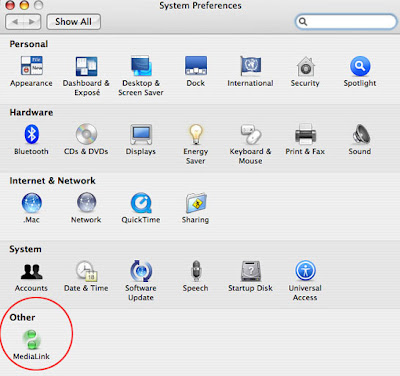
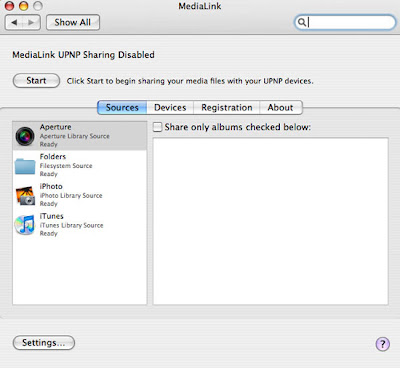
4) If you are using mac OS X you can save all the hassle of unix commands by spending $20 on a software by nullriver.com as the free version is valid only for 30 minutes. Once you have downloaded the PS3 integration software on your iMAC for bringing in content like music, videos, movies and TV shows from iTunes, you will see medialink icon in the status bar and system preferences.

5) Click on the medialink icon in System preferences and select the folders, or applications that Medialink devices can be enabled.

That's all to it. Turn on your PS3 player and your HDTV and you will see all your content and ready to stream your stuff on the PC and mac right to your high definition TV....Enjoy.!!!

If you have questions or comments please feel free to write your bits...would love to hear. Till the next...
Sam Kurien
Saturday, April 24, 2010
3D TV's and 3D Technology

What are the different 3D content formats?
Just like HD has different resolutions, 3D has different formats. There is frame compatible that is backwards compatible with set-top boxes, then there is the new MVC AVC codec that requires new equipment but it does double the resolution. It is the left image plus the difference for the right.

Isn't frame compatible half the resolution of HD?
No, it's actually the exact same resolution as HD. Sure it would be better if the resolution was doubled, but it still isn't less resolution than HD.


So what my Mitsubishi or Samsung DLP has been doing 3D for while, so can I just pick up a 3D Blu-ray player and enjoy?
Nope, DLPs use the checkerboard 3D format which needs a converter, but Mitsubishi does have one coming for an estimated $100. In addition some 3D Blu-ray players like the Panasonic 3DT-300 will output checkerboard 3D -- thanks snickering hound.
No, it's actually the exact same resolution as HD. Sure it would be better if the resolution was doubled, but it still isn't less resolution than HD.
What resolution is 3D in?
Both 3D formats support 1080p and 720p. Blu-ray is 1080p 24 per eye or 720p 60 per eye. 3D broadcast is 1080i 30 per eye or 720p 60 per eye.
Both 3D formats support 1080p and 720p. Blu-ray is 1080p 24 per eye or 720p 60 per eye. 3D broadcast is 1080i 30 per eye or 720p 60 per eye.
Is HDMI 1.4a required for 3D?
No, in fact many HDMI 1.3 cables, switches and other equipment will work with multiple 3D formats, but none are guaranteed to work. HDMI 1.4a equipment is guaranteed to work with most 3D formats.
No, in fact many HDMI 1.3 cables, switches and other equipment will work with multiple 3D formats, but none are guaranteed to work. HDMI 1.4a equipment is guaranteed to work with most 3D formats.

So if I buy a new 3DTV, what else do I need to watch 3D via cable or satellite?
Since most existing set-tops support frame compatible 3D, you won't need anything else. But until yourbox gets a firmware update that'll make it 3D aware, you'll need to manually select the format.
How much bandwidth does 3D need?
Frame compatible 3D uses the same as HD, but DirecTV says it's more efficient to compress. 3D Blu-ray uses about 50 percent more throughput with a higher maximum bit rate of 60Mbps.
Who cares about 3D, I want 1080p at 60 fps.
We all do and in fact cable and satellite plan on delivering 1080p60 per eye eventually, but it'll require a new set-top box -- no word on which codec will be used, but you'll be able to watch it in 2D too.
Will a 3D channel require a full 6Mhz QAM channel?
No, not at all. Even the ultimate 1080p/60 per eye would easily fit into half a QAM channel. You see since the set-top needs upgraded anyways, it'll be upgraded to one that supports some variation of H.264, which is much more efficient than MPEG2 that's used today.
How will 24p 3D be displayed on a 240hz HDTV?
Sony 3DTVs display 24p 3D at 120hz per eye, so each frame will be shown 5 times.
Panasonic 3DTVs will display 24p 3D at 96hz per eye, so each frame will be shown 3 times.
Are there even any 3D channels?
Other than a few 3D specials there aren't any channels live yet, ESPN will launch its 3D channel this Summer on DirecTV -- no one else has announced carriage yet. DirecTV also plans to launch a few 3D channels this Summer including a PPV channel and a variety channel. All will use the frame compatible 3D format but will probably be different resolutions (ESPN is expected to be 720p60, might be some 1080p24 PPV movies too).
Since most existing set-tops support frame compatible 3D, you won't need anything else. But until yourbox gets a firmware update that'll make it 3D aware, you'll need to manually select the format.
How much bandwidth does 3D need?
Frame compatible 3D uses the same as HD, but DirecTV says it's more efficient to compress. 3D Blu-ray uses about 50 percent more throughput with a higher maximum bit rate of 60Mbps.
Who cares about 3D, I want 1080p at 60 fps.
We all do and in fact cable and satellite plan on delivering 1080p60 per eye eventually, but it'll require a new set-top box -- no word on which codec will be used, but you'll be able to watch it in 2D too.
Will a 3D channel require a full 6Mhz QAM channel?
No, not at all. Even the ultimate 1080p/60 per eye would easily fit into half a QAM channel. You see since the set-top needs upgraded anyways, it'll be upgraded to one that supports some variation of H.264, which is much more efficient than MPEG2 that's used today.
How will 24p 3D be displayed on a 240hz HDTV?
Sony 3DTVs display 24p 3D at 120hz per eye, so each frame will be shown 5 times.
Panasonic 3DTVs will display 24p 3D at 96hz per eye, so each frame will be shown 3 times.
Are there even any 3D channels?
Other than a few 3D specials there aren't any channels live yet, ESPN will launch its 3D channel this Summer on DirecTV -- no one else has announced carriage yet. DirecTV also plans to launch a few 3D channels this Summer including a PPV channel and a variety channel. All will use the frame compatible 3D format but will probably be different resolutions (ESPN is expected to be 720p60, might be some 1080p24 PPV movies too).
So... sports and movies, is that it?
No, Discovery and Sony are working to launch a 3D channel next year that might be called 3D.net.
When are we going to start seeing 3D Blu-ray Discs for sale?
No firm dates yet, but Blu-ray movies should start shipping this Summer, in the meantime demo material comes with Samsung and Panasonic's 3D kits.
Do 3DTVs cost a lot more than 2DTVs?
No, not really. In fact the first generation 3DTVs from Samsung and Panasonic are actually cheaper than their comparable-older 2D versions.
Can I use the 3D glasses as sunglasses?
Well you can do whatever you want, but while the glasses do block light they don't really work as sunglasses.
If they block light, does that mean the TV is dimmer?
Kind of, displays actually automatically crank up the brightness to compensate for the dimming of the glasses, but the glasses do improve the display's perceived black levels.
Can I upgrade the firmware in my Blu-ray player to support 3D?
Only the PS3 is getting an update, most older hardware can't be updated to support the new MVC version of AVC that is used to encode 3D.
Can I watch 2D on a 3DTV?
Yes of course, you don't have to watch 3D all the time. The newer HDTVs have better 2D performance as well and you can even watch 3D content in 2D if you want.
Can I watch this new 3D content on the 120Hz HDTV I just bought?
No, older TVs can't / won't be upgraded to be 3D compatible. Even the latest 120Hz displays can't accept the signal and there is no IR emitter to sync the glasses.
No, Discovery and Sony are working to launch a 3D channel next year that might be called 3D.net.
When are we going to start seeing 3D Blu-ray Discs for sale?
No firm dates yet, but Blu-ray movies should start shipping this Summer, in the meantime demo material comes with Samsung and Panasonic's 3D kits.
Do 3DTVs cost a lot more than 2DTVs?
No, not really. In fact the first generation 3DTVs from Samsung and Panasonic are actually cheaper than their comparable-older 2D versions.
Older TVs can't be upgraded to play 3D. Even the latest 120Hz displays can't accept the signal and there's no IR emitter to sync the glasses. |
Well you can do whatever you want, but while the glasses do block light they don't really work as sunglasses.
If they block light, does that mean the TV is dimmer?
Kind of, displays actually automatically crank up the brightness to compensate for the dimming of the glasses, but the glasses do improve the display's perceived black levels.
Can I upgrade the firmware in my Blu-ray player to support 3D?
Only the PS3 is getting an update, most older hardware can't be updated to support the new MVC version of AVC that is used to encode 3D.
Can I watch 2D on a 3DTV?
Yes of course, you don't have to watch 3D all the time. The newer HDTVs have better 2D performance as well and you can even watch 3D content in 2D if you want.
Can I watch this new 3D content on the 120Hz HDTV I just bought?
No, older TVs can't / won't be upgraded to be 3D compatible. Even the latest 120Hz displays can't accept the signal and there is no IR emitter to sync the glasses.
So what my Mitsubishi or Samsung DLP has been doing 3D for while, so can I just pick up a 3D Blu-ray player and enjoy?
Nope, DLPs use the checkerboard 3D format which needs a converter, but Mitsubishi does have one coming for an estimated $100. In addition some 3D Blu-ray players like the Panasonic 3DT-300 will output checkerboard 3D -- thanks snickering hound.
Cheers till the next time
Sam Kurien
Source: Engadget
Source: Engadget
Subscribe to:
Posts (Atom)
